DWBouncers/Clients/Textual: Difference between revisions
< DWBouncers | Clients
| Line 40: | Line 40: | ||
== Example Screenshot == | == Example Screenshot == | ||
<gallery> | <gallery widths="600" heights="500"> | ||
File: | File:Textual.png|Example server configuration in{{PAGENAME}} | ||
</gallery> | </gallery> | ||
Revision as of 18:50, 10 October 2025
DWBouncers/Clients/Textual Setup Guide
This page explains how to configure DWBouncers/Clients/Textual to connect with DWBouncers (ZNC or Soju).
Requirements
- A valid DWBouncers account (ZNC or Soju)
- Server details: Template:DWBouncerServers
- Username format:
- For ZNC:
username/network - For Soju:
username
- For ZNC:
- Your assigned password
Connection Settings
| Setting | Value |
|---|---|
| Server | bouncers.darkworld.network
|
| Port | 31337 (SSL) or 1337 (non-SSL) |
| SSL | Yes (recommended) |
| Username | username/network
|
| Password | Your DWBouncer password |
Step-by-Step Setup
- Open DWBouncers/Clients/Textual.
- From the menu bar, select Server → Server Properties.
- Add a new server/network entry:
- Server:
bouncers.darkworld.network - Port:
31337and enable SSL. - Username:
username/network. - Password: your assigned DWBouncers password.
For example: username/darkworld:password
- Save the configuration.
- Connect.
Example Screenshot
-
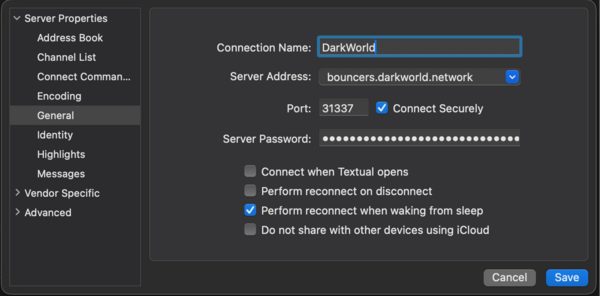 Example server configuration inDWBouncers/Clients/Textual

Troubleshooting
- Double-check your username format (
username/network). - Ensure SSL is enabled on port 6697.
- If you cannot connect, verify your credentials on ZNC Webadmin or Soju Panel.